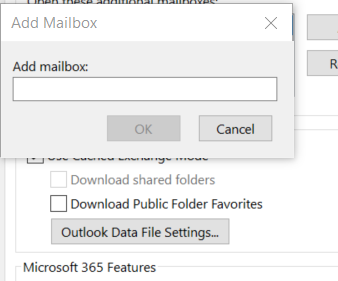

Manually Add Shared Mailbox in Outlook
Author: JK Posted: 7 May 2020 Viewed: 31605 times Tags: #Windows 10 #Outlook
Manually Add Shared Mailbox in Outlook
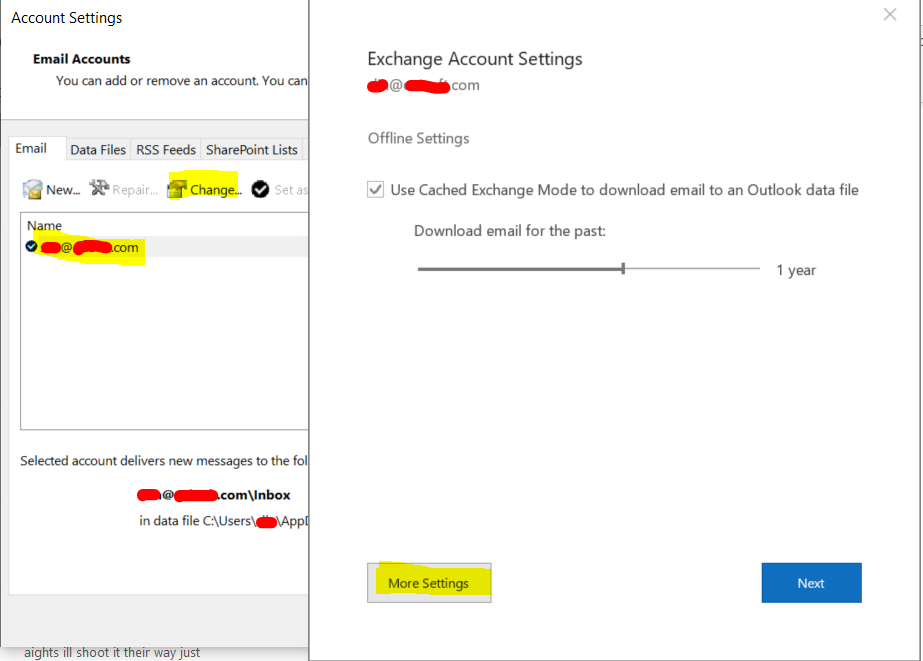
1. Select your profile and click on Change.
2. Click on More Settings.
3. On the Advanced tab, click Add.
4. Type the email address or name of the shared mailbox, then click OK.
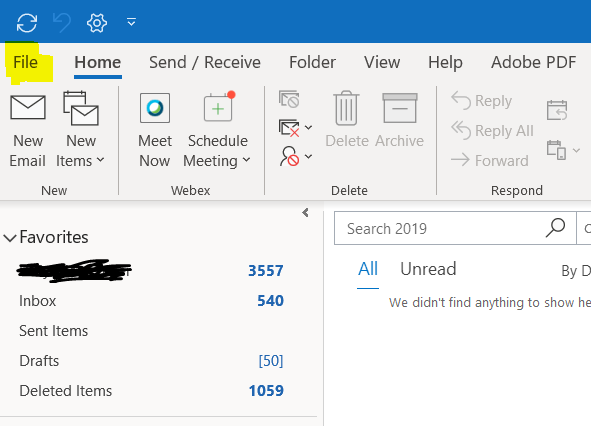
Step 1 : Choose File
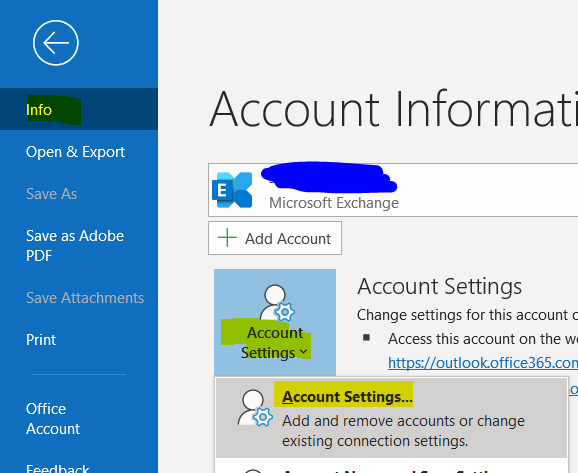
Step 2: Info > Account > Account Settings
Step 3: More setting
Step 4: Advance > Add
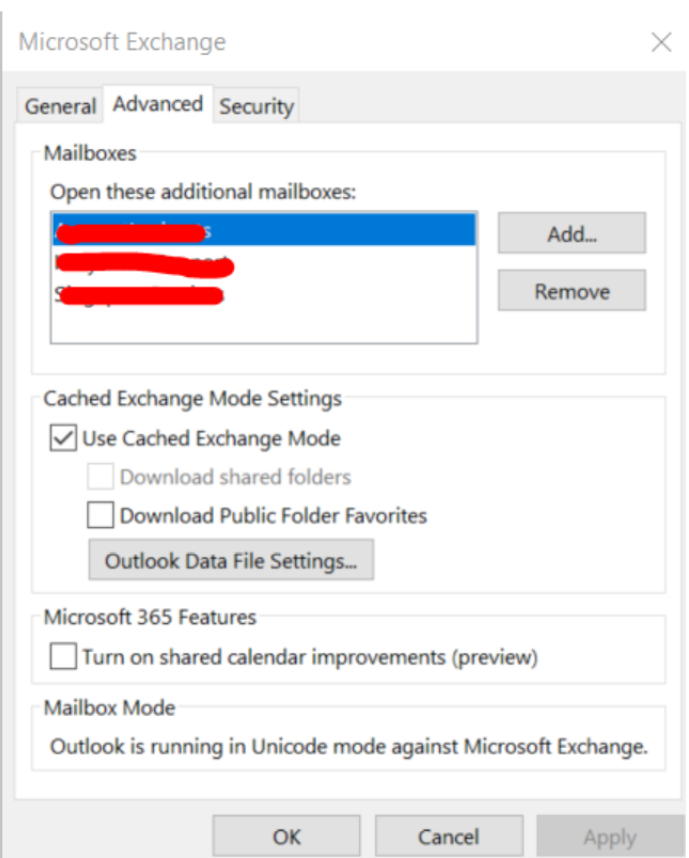
Step 5: Enter the mailbox display name or email address